

Ever glanced at your iPhone and thought, “Did I accidentally order a banana instead of a smartphone?” A yellow screen can be puzzling, leaving many scratching their heads and wondering if they’ve entered a bizarre alternate dimension. But fear not! This quirky phenomenon isn’t a sign of impending doom or a secret message from the Apple overlords.
Common Reasons for Yellow Screen on iPhone
Several factors contribute to an iPhone displaying a yellow screen. Exploring these reasons helps identify the root cause and potential solutions.
True Tone and Night Shift Features
True Tone technology adjusts the display’s color temperature based on ambient light. This feature creates a warmer tone, which might appear yellowish. Night Shift reduces blue light exposure by shifting colors to the warmer end of the spectrum. Users who rely on these settings often notice a difference in screen color, especially in low-light environments. Disabling these features in the display settings can resolve the yellow tint.
Display Settings Adjustments
Display settings play a crucial role in how colors appear on an iPhone screen. Adjusting the brightness can sometimes restore color balance. Users should check whether Color Filters or Increase Contrast settings are enabled, as these can alter the display’s natural colors. Resetting all settings may also correct any inadvertent changes that caused the yellow appearance. Accessing these options ensures the screen displays accurate, vivid colors.
Hardware Issues
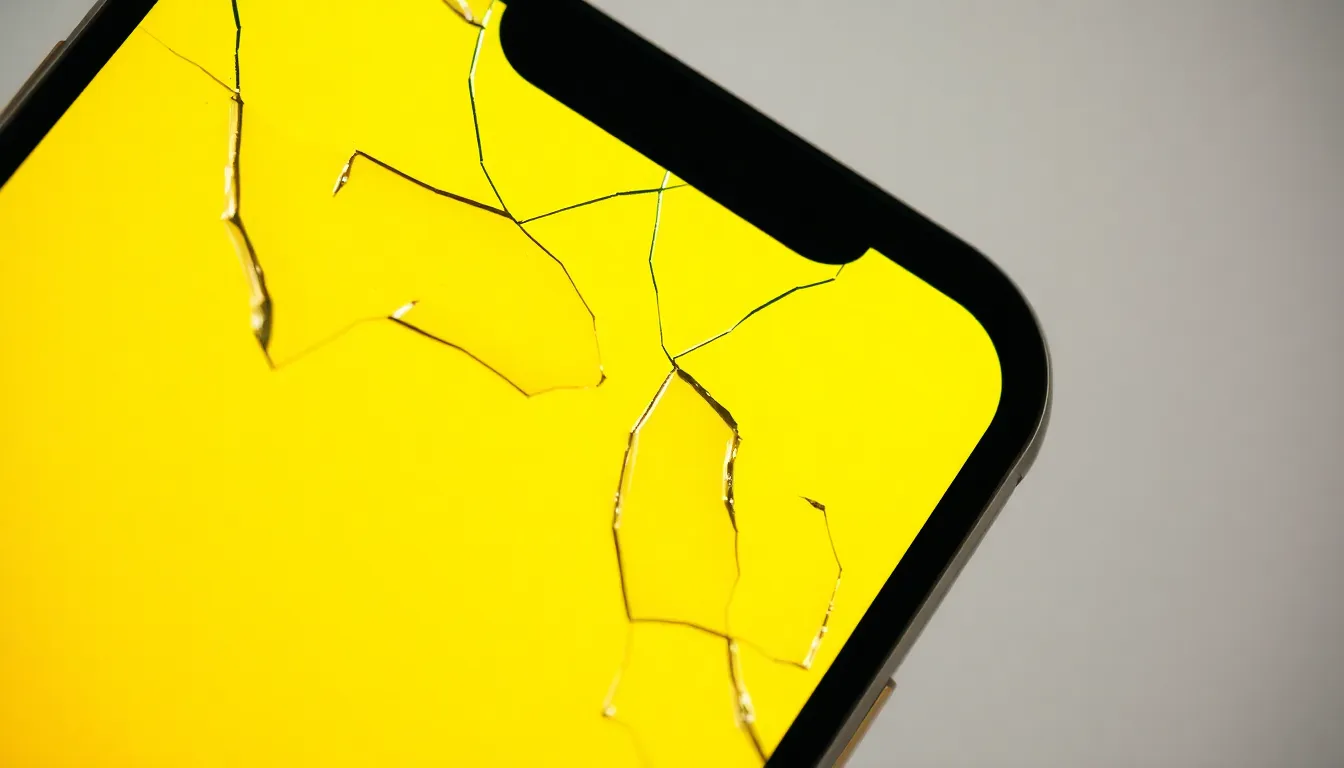
Hardware problems may cause an iPhone screen to appear yellow. These issues typically stem from screen damage or calibration problems.
Screen Damage or Malfunctions
Screen damage can lead to color distortions, including a yellow tint. Cracks, scratches, or significant impacts may disrupt the LCD layer. Damaged screens often display inconsistent colors. If an iPhone suffers any physical harm, checking for visible defects is essential. Minor damage may go unnoticed, yet it can affect the display. In some cases, replacement of the screen may solve the problem entirely. Conducting a thorough inspection helps identify whether the yellow tint stems from superficial or internal damage.
Display Calibration Problems
Calibration issues can also result in a yellowish screen tint. Improper calibration may alter how colors appear on the display. Resetting the display settings often rectifies such problems. Adjusting settings like brightness and color filters can improve color accuracy. Users should ensure the Color Filters and Increase Contrast functions remain disabled to prevent color distortion. If calibration adjustments do not resolve the yellow tint, a professional evaluation of the device might be necessary. Accurate calibration is crucial for achieving true-to-life colors.
Software Troubleshooting
Sometimes a simple software fix can clear up the yellow screen issue on an iPhone. Below are steps to troubleshoot using device software.
Restarting the Device
Restarting an iPhone refreshes system processes. This quick action often resolves minor glitches that affect color display. To do this, he or she can press and hold the side button and one of the volume buttons until sliders appear. After dragging the slider to turn off the phone, they should wait for about 30 seconds before pressing the side button to turn it back on. Many users experience improvement in screen color after this step.
Updating iOS
Updating iOS ensures the device runs on the latest software, which includes bug fixes and performance improvements. To check for updates, he or she can navigate to Settings, select General, and then tap Software Update. If an update is available, installing it might resolve screen color issues. Users benefit from enhanced stability and fewer errors when they keep their iPhone up to date. Regular updates can prevent future display problems as well.
User Adjustments and Solutions
Users can often resolve yellow screen issues through simple adjustments and settings changes on their iPhones.
Adjusting Color Filters
Adjusting the color filters can restore the display’s accuracy. Users should navigate to Settings, then Accessibility, and select Display and Text Size. From this menu, Color Filters can be disabled if activated. Disabling color filters often returns the screen to its original appearance. Users may also consider toggling the Increase Contrast setting found in the same menu. If any color adjustments no longer seem necessary, removing these filters usually corrects unwanted hues.
Resetting All Settings
Resetting all settings offers another effective approach. This action clears all personalized settings without deleting data or apps. To perform this reset, users can go to Settings, choose General, and select Transfer or Reset iPhone. Tapping Reset followed by Reset All Settings initiates the process. After the reset, configurations such as Wi-Fi passwords and wallpapers revert to default, but the yellow tint should be eliminated. Frequent adjustments to settings often lead to the yellow screen, making this reset a practical solution.
Experiencing a yellow screen on an iPhone can be concerning but it’s often a fixable issue. By adjusting settings like True Tone and Night Shift or checking for enabled color filters, users can usually restore their display to its normal state. In cases where software solutions don’t work, inspecting for hardware damage or seeking professional help may be necessary. Regularly updating iOS and performing simple troubleshooting steps can also prevent future display problems. With a few adjustments and checks, users can enjoy a vibrant and accurate display once again.